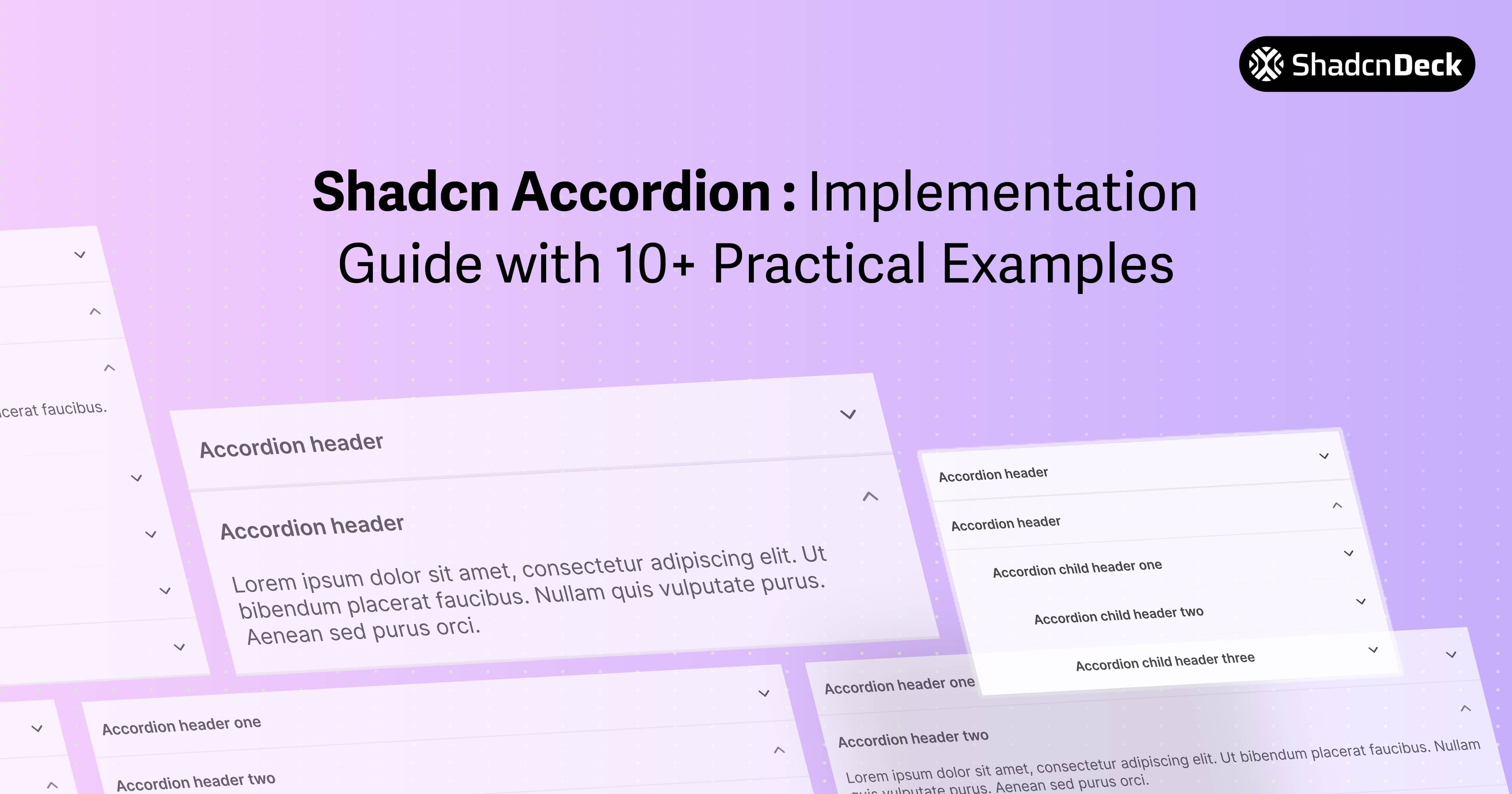
The shadcn accordion component is a fully accessible collapsible UI primitive built on Radix UI, styled with Tailwind CSS, and installed in one CLI command. It ships with keyboard navigation, ARIA semantics, and animated open/close transitions by default. shadcn/ui has over 116,000 GitHub stars and is trusted by teams at OpenAI, Sonos, and Adobe.
The accordion is one building block among many — browse the full shadcn components directory for guides to every shadcn/ui primitive.
This guide covers 12 production-ready shadcn accordion patterns — single, multiple, open by default, controlled, animated, icon, styled, nested, FAQ, and mobile — each with complete copy-paste code.
What is the shadcn accordion component and how does it work?
The shadcn accordion component wraps the Radix UI @radix-ui/react-accordion primitive and adds Tailwind-based default styling. It exposes four sub-components: Accordion (root), AccordionItem (each section), AccordionTrigger (the clickable header), and AccordionContent (the collapsible body). You own the source — the CLI copies it to components/ui/accordion.tsx and you control every styling and behaviour detail directly.
Installation & Setup
To use the accordion shadcn component, you must have a project initialized with Tailwind CSS and the shadcn CLI. Run the following command to add the component to your project:
This command installs the Radix UI accordion primitive and creates an accordion.tsx file in your components directory. Ensure your tailwind.config.js includes the necessary keyframes for the default shadcn accordion slide-down and slide-up animations.
Basic Accordion Implementation
The core structure of the shadcn accordion consists of four parts: the root Accordion, the AccordionItem wrapper, the AccordionTrigger (the clickable header), and the AccordionContent (the collapsible body).
Key details:
type="single"ensures only one item can be open at a time.collapsibleallows the user to close an item even if it is the only one open.- Each
AccordionItemrequires a unique value string.
12 shadcn accordion component patterns for React and Next.js
These 12 patterns cover every common accordion use case. All share the same four sub-components — only the type prop, defaultValue, and Tailwind classes change between them.
1. Single Item Open (Default)
What it is: The standard configuration where opening one section automatically closes any other open section.
When to use: Use this for settings panels or sidebars where focus should remain on a single task or category.
Key details:
- Standard Radix UI behavior for "exclusive" expansion.
- Ideal for reducing visual clutter.
collapsibleprop is optional but recommended for UX.
2. Multiple Items Open
What it is: A configuration that allows users to expand as many sections as they want simultaneously.
When to use: Perfect for product feature lists or comparison tables where users need to see data from multiple categories at once.
Key details:
- Set
type="multiple"to enable independent toggles. - Items do not close automatically when another is clicked.
- Useful for long-form content organization.
3. Shadcn Accordion Open by Default
What it is: An accordion component with specific items expanded on initial render.
When to use: Use shadcn accordion open by default logic when you want to highlight the most important section or guide the user's eye immediately upon page load.
Key details:
- Set
defaultValue="value"to have a shadcn accordion open by default fortype="single". - For multiple items, use an array:
defaultValue={["value1", "value2"]}. - This is an uncontrolled pattern; the user retains full control after the initial render.
4. Fully Controlled Accordion
What it is: Managing the accordion's open/close state using React's useState hook.
When to use: Required for programmatic control, such as a "Close All" button or syncing state with a URL search parameter.
🔁 Controlled state looks the same across components. If you're managing accordion state with useState, the same pattern applies to tabs. shadcn tabs component guide covers controlled tabs in detail, useful if you're building a multi-step form or wizard.
5. Shadcn Accordion Animation Customization
What it is: Modifying the default open and close transitions to match specific brand aesthetics.
When to use: Use shadcn accordion animation overrides when the default slide is too fast, too slow, or requires a custom easing function like "bounce."
Key details:
- Target
data-state="open"anddata-state="closed"for granular control. - Utilize Tailwind's arbitrary values (e.g.,
duration-[600ms]) for quick tweaks. - Ensure
overflow-hiddenis present on the content wrapper to prevent layout jumps.
🎨 Animation tweaks are easier when your theme is already locked in. If you're still deciding on colors, radius, and font scale, the free shadcn theme generator lets you preview changes live before touching any code.
6. Accordion with Icons
What it is: Adding custom visual indicators (like plus/minus or folder icons) to the trigger. The AccordionTrigger is a button element under the hood, so you can apply the same trigger buttons and toggle patterns you would use elsewhere in your UI.
When to use: Enhancing visual hierarchy or providing clearer UX signals than the default chevron.
If you're styling accordions for an FAQ or feature section, it's worth seeing them in a finished landing page rather than in isolation. FoxCopy just launched, a shadcn/ui SaaS landing page template with a built-in blog, and it puts patterns like this in context.

7. Styled Accordion Variants
What it is: Creating different visual "skins" like ghost, bordered, or card-style.
When to use: Matching the accordion to different sections of a website (e.g., a "Dark Mode" sidebar vs. a "Light Mode" FAQ). A popular approach is wrapping accordion content in cards to give each section a contained, elevated look.
8. Accordion with Rich Content
What it is: Embedding complex JSX, such as images, videos, or code snippets, inside the collapsible area.
When to use: Documentation sites or product galleries where details require more than just text.
9. Nested Accordion
What it is: Placing an accordion component inside the AccordionContent of another accordion.
When to use: Deeply hierarchical navigation or complex multi-level settings.
10. Accordion FAQ Section
What it is: A production-ready FAQ section optimized for SEO with structured data.
When to use: Help centers and landing pages.
Frequently Asked Questions
📄 Building a landing page with an FAQ section? Our free shadcn templates already include FAQ sections structured exactly like this, which saves you the layout work upfront.
11. Accordion with Search/Filter
What it is: A dynamic accordion that filters items based on a text input.
When to use: Knowledge bases with dozens of entries.
12. Mobile-Optimized Accordion
What it is: Larger tap targets and simplified animations for touch devices.
When to use: Mobile-first web apps.
📱 Mobile accordion is just one part of a responsive layout. If you need collapsible sidebars and resizable panels alongside it, the shadcn resizable sidebar component guide covers mobile fallback patterns that complement this well.
How do you customise shadcn accordion animations and styling?
The shadcn accordion component uses two Tailwind keyframes — animate-accordion-down and animate-accordion-up — defined in your tailwind.config.js. Change the duration, easing, or keyframe values there to apply globally. For per-instance overrides, add Tailwind classes directly to AccordionContent.
Animation Timing
You can adjust the shadcn accordion animation by targeting the CSS variables defined in your globals.css. By default, shadcn uses Tailwind's animate-accordion-down. To slow it down:
- Use
duration-500orduration-700classes on theAccordionContent. - Customize easing functions in
tailwind.config.jsusingcubic-bezierfor a more premium feel.
Theme Integration
The shadcn accordion automatically inherits colors from your CSS variables (--primary, --background, etc.). To implement a custom color scheme:
- Target
AccordionItemwithborder-primary/20. - Use
hover:bg-accenton theAccordionTriggerto highlight the interactive area.
When should you use the shadcn accordion component?
Use the shadcn accordion component for any UI that needs collapsible content with keyboard accessibility built in. It suits 4 primary scenarios:
- FAQ sections: The most common use case for collapsible text.
- Navigation Menus: Specifically in mobile sidebars.
- Filter Panels: In e-commerce sites to hide/show filter categories.
- Settings Pages: Grouping related configuration toggles.
For more real-world inspiration, browse accordions in production shadcn apps to see how teams structure collapsible content in shipping products.
What are the accessibility and performance rules for shadcn accordion?
The shadcn accordion is WCAG compliant by default — Radix handles keyboard focus, Enter/Space triggers, and ARIA roles automatically. There are 3 rules to follow in your own implementation to keep it accessible and performant.
- Performance: For accordions with 50+ items, avoid rendering heavy components (like maps or large images) inside the content until the item is expanded.
- Accessibility: Never remove the
AccordionTriggerbutton wrapper. It provides the essential keyboard "Enter" and "Space" listeners required for WCAG compliance. Consider adding help tooltips to accordion headers so users understand what each section contains before expanding it. - UX Design: Avoid nesting accordion shadcn components more than two levels deep, as it becomes difficult for users to track their location in the hierarchy.
- Visual Feedback: Always provide a hover state on the trigger to indicate interactivity.

Related Posts
Explore more shadcn component guides:
- shadcn tabs component guide
- shadcn select component guide
- shadcn chat UI guide
- shadcn avatar component guide
- shadcn resizable sidebar component guide
- shadcn button examples and variants
- shadcn card component guide
- shadcn checkbox variants and examples